
The sudden appearance of a solid white screen on your phone is alarming. This frustrating event is widely known as the White Screen of Death, or WSoD.
It leaves your device seemingly functional but visually paralyzed. The phone itself might still be on. You may hear notification sounds or feel haptic feedback. However, your critical data and access are completely locked away.
This issue affects both Android smartphones and Apple iPhones equally. It demands a calm, systematic, and highly informed response.
You must first diagnose the root cause accurately. Only then can you select the correct troubleshooting steps. This comprehensive, detailed guide walks you through every cause and solution.
Software vs. Hardware
The WSoD is not a single point of failure. It is a symptom stemming from several diverse origins.
These causes generally fall into two distinct and critical categories. They are faults related to software or faults related to the phone’s physical hardware.
A correct diagnosis saves time, effort, and potentially your valuable data.
Software-Related Causes
Software errors are often the least severe type of WSoD trigger. These problems are usually resolved without the need for physical repair work.
1. Corrupted System Files: A common and highly damaging cause is an issue during an Operating System (OS) update. If your phone battery dies mid-update, the OS files can become corrupted. This file damage prevents the device from loading the user interface. It gets stuck halfway, defaulting to the white screen. Incomplete installations of software can also trigger this error.
2. Rogue Applications and System Conflicts: Newly installed third-party apps can sometimes be poorly coded. These apps may conflict severely with the phone’s core operating system. The app might fight for system resources. This conflict can prevent the display driver from initiating correctly. Starting your phone in Safe Mode can help isolate this application fault.
3. Low Storage or Memory Exhaustion: A phone running critically low on storage space struggles to perform basic functions. It needs temporary system files for a successful boot sequence. A lack of available memory often prevents these files from being stored. This resource exhaustion then causes the boot process to fail. The failure is frequently displayed as the WSoD.
4. Accessibility Setting Glitches: This is a surprisingly common, yet simple, cause on some Apple devices. The Zoom accessibility feature might accidentally be set to maximum magnification. This makes the screen appear completely white and blank. It gives the illusion of a total system failure.
If your device is displaying software faults that you cannot resolve, a prompt and reliable repair specialist can offer recovery services. They have the specialized digital tools needed to force a system reflash. This process resolves deep-seated corruption issues.
Hardware-Related Causes
Hardware failure is typically more critical. It involves physical damage to the internal components. This type of failure almost always requires professional intervention.
1. Physical Impact and Loose Connections: Dropping your phone is the most frequent hardware culprit. Even a relatively minor impact can jar delicate internal components. This shock can loosen the display connector cable. This cable is the vital link between the screen and the main logic board. When it detaches, the phone powers on, but the display remains blank and white. This is a classic indicator of impact damage.
2. Water or Liquid Intrusion: Exposure to moisture is extremely hazardous for internal electronics. Liquid can seep in and corrode the metal contacts on the logic board. This corrosion leads to a short circuit in the display’s circuit path. This damage often surfaces later, causing display failure. If you suspect liquid damage, do not attempt to turn the phone on again.
3. Display Component Failure: The LCD or OLED panel itself can fail. Overheating or physical stress can damage the display controller chip. This controller is what manages the image on the screen. Failure of this tiny component prevents any visual output.
Furthermore, a swelling battery can press against the back of the display assembly. This internal pressure often results in cracks or component failure, immediately leading to the white screen. The moment you see physical symptoms, such as screen flickering or heat, contacting a certified iPhone repair expert is highly recommended. These Brisbane technicians are equipped to handle complex internal damage safely.
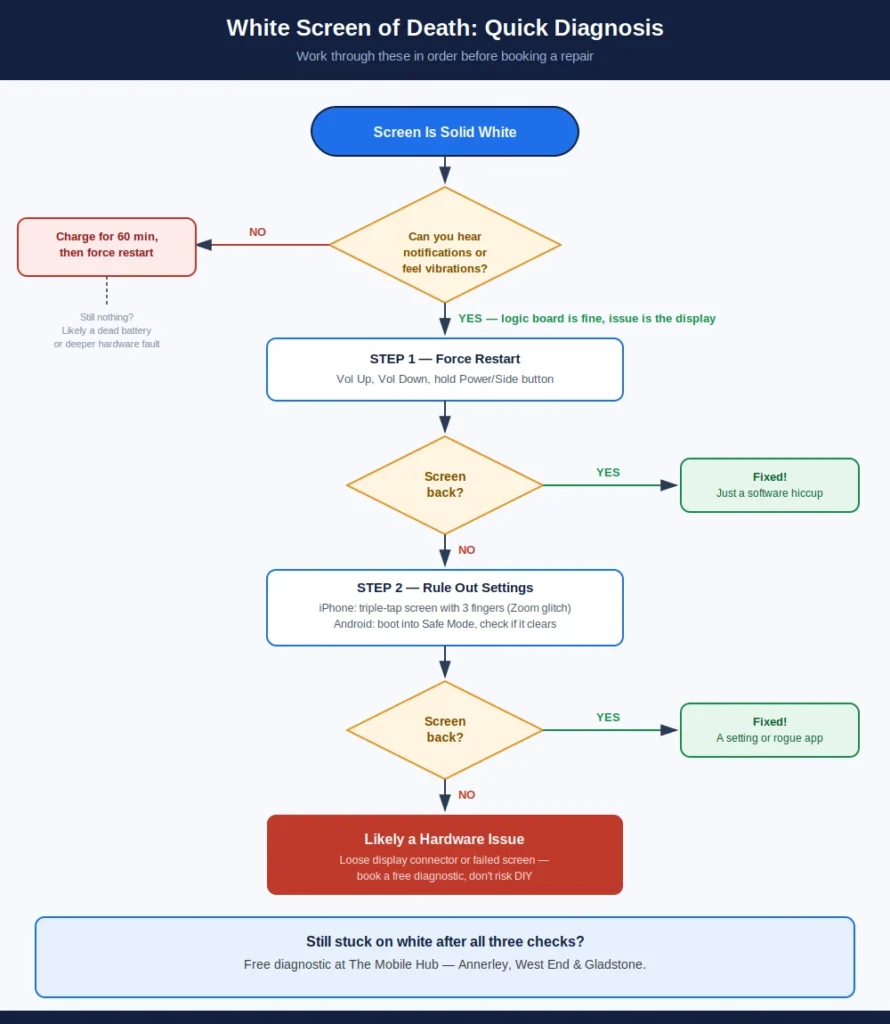
Initial DIY Troubleshooting
Before panicking, execute these safe, non-invasive troubleshooting steps. They address the most common software and temporary issues.
Step 1: The Essential Force Restart (Hard Reset)
The force restart is the most powerful basic fix. It purges temporary memory files without deleting your personal data. This action often resolves software hangups and glitches.
- iPhone Hard Reset (iPhone 8, X, and Newer): Press and swiftly release the Volume Up button. Then, press and swiftly release the Volume Down button. Finally, press and hold the Side (Power) button continuously. Keep the Side button held down until the Apple logo appears clearly. This sequence must be performed quickly.
- Older iPhone Hard Reset (iPhone 7/7 Plus): Press and hold the Volume Down button and the Sleep/Wake button simultaneously. Continue holding both buttons until the Apple logo appears.
- Android Hard Reset (Most Devices): Press and hold the Power button and the Volume Down button at the same time. Hold this combination for 10 to 20 seconds straight. The phone should then vibrate and reboot. If your Android has an older, removable battery, removing it for a minute and reinserting it achieves the same result.
- White Screen on Samsung, Google Pixel & Other Android Phones: Most Android brands follow the same basic hard reset (Power + Volume Down), but a few have their own quirks. On Samsung Galaxy phones, if the hard reset doesn’t work, try Power + Volume Down together for the full 10-15 seconds — Samsung devices sometimes need a slightly longer hold. On Google Pixel phones, a stuck white screen after a system update is common; holding Power + Volume Down for 10 seconds usually forces a reboot into the normal interface. If your Android phone still shows a white screen after these brand-specific steps, it’s worth trying Safe Mode next (see Step 3 below).
If the hard reset fails to bring back the display, the problem is more substantial. It could still be software, but it might require specialized attention. Persistent white screen problems often point towards a necessary professional diagnosis.
Step 2: Ruling Out Accessibility Zoom Glitch (iPhone)
If your iPhone’s white screen is the result of a magnification shortcut, the fix is very simple. Place three fingers together on the screen. Then, triple-tap the display with those three fingers.
This action is the default shortcut to disable the Zoom feature. If the screen suddenly returns to normal, the issue was simply an accidental setting change. You can then disable the Zoom feature permanently in the Settings menu. For cases where the white screen is stubborn, professional repair assistance offers peace of mind.
Step 3: Diagnostic Boot in Safe Mode (Android)
Safe Mode is crucial for determining software causation on Android phones. It loads the OS using only the essential system applications.
All third-party apps are temporarily disabled in this mode. If your phone screen returns to normal color and function in Safe Mode, a recently installed app is definitely the culprit.
- Entering Safe Mode: The exact steps vary by phone manufacturer. Generally, you press and hold the Power button until the Power Off menu is visible. Then, press and hold the Power Off option on the screen itself. This prompts a dialog box to reboot into Safe Mode.
Once in Safe Mode, you can safely uninstall the problematic application. If the white screen remains, the issue is either a deep-level OS corruption or a hardware failure. If you cannot access Safe Mode, you should seek professional help immediately.
Step 4: Verify Battery and Charging Connection
A severely drained battery can cause a failed boot sequence. Connect your phone to a working charger and wall outlet. Leave it to charge for at least 60 minutes. The phone might take a while to display the charging icon.
After charging, attempt the force restart procedure once more. A simple power issue should always be ruled out first. This basic check should precede any major diagnostic steps. If power remains an issue, seeking a specialised battery and power diagnostic is the next logical step.
Advanced Recovery and Data Preservation
When basic troubleshooting fails, you must attempt more advanced recovery methods. These are more invasive and may risk data loss.
Step 5: Recovery Mode and System Update
Recovery Mode is a dedicated environment. It allows you to perform system maintenance without fully booting the OS. It is essential for reinstalling a clean copy of the operating system.
- iPhone Recovery Mode: Connect your device to a computer running the latest version of iTunes or Finder. Use the specific button sequences to enter Recovery Mode. When prompted by the computer, select the “Update” option first. This attempts to reinstall iOS without erasing your data. Only choose “Restore” if “Update” fails, as a restore will erase everything. This process is delicate and can be problematic if the display is failing. If the connection drops, this points towards a deeper issue needing professional repair.
- Android Recovery Mode (Wiping Cache): Use the Power and Volume button combinations to enter Android Recovery Mode. Try the “Wipe Cache Partition” option first. This action clears temporary system files that might be corrupted. It does not erase your personal data.
Step 6: Deep System Restore (iPhone Only)
Device Firmware Update (DFU) Mode is the most intensive system restore option for an iPhone. It interfaces directly with the device’s bootloader. This is the only mode that can fix the most severe firmware corruption. Entering DFU Mode is highly dependent on timing and precise button presses. If you are inexperienced, it is highly advisable to seek expert help. They can execute this complex procedure without risking further device damage. DFU Mode is often the definitive software test before concluding that the fault is hardware-related.
Step 7: Factory Reset as the Final Software Resort
If all previous steps fail and you can access Recovery Mode, a Factory Reset is the final option. This process completely wipes the device. It removes all user data, apps, and settings. It restores the phone to its original factory state. This step guarantees to fix any software-related WSoD. Only proceed if you have a recent backup and all other software attempts have been exhausted. The fear of data loss makes many users immediately prefer professional repair services instead of taking this drastic step. A skilled technician can often fix the screen and recover data without a factory reset.
When to Call the Experts
When the white screen persists despite all software fixes, the problem is physical. Hardware failure requires skilled physical intervention, replacement, or micro-soldering.
Diagnosing Hardware Failure Symptoms
A critical indicator of a hardware issue is the contrast between sound and visuals. If you hear the phone boot up, receive calls, or feel haptics, the main logic board is functional. The failure is localized to the display components.
Any signs of heat, screen pressure marks, or prior physical trauma point to internal damage. The display assembly or its flex cable connector is the likely source of the fault. This is the moment to contact an expert.
A specialist in iPhone repair uses diagnostic equipment. They can accurately measure the current flow to the display. This measurement instantly confirms a screen or connector fault.
The Risks of DIY Hardware Intervention
Modern smartphone components are tiny and fragile. Attempting a DIY screen replacement is extremely risky.
You can easily tear other delicate flex cables, leading to new malfunctions. Puncturing the lithium battery is a significant safety hazard. The specialized tools and controlled environment of a professional shop are necessary.
For complex internal damage, a reliable repair shop is always the safest and most efficient path. They ensure that all delicate components are handled correctly.
Prioritizing Data and Expert Service
When selecting a repair service, look for certified and experienced technicians. For Apple devices, finding an expert focused on iPhone repairs is crucial. They are guaranteed to have access to high-quality or genuine replacement parts.
A trustworthy repair facility should always offer a clear warranty on their work. They must prioritize a full diagnostic check first. This check accurately identifies the cause of the white screen. This diagnostic approach prevents unnecessary parts replacement.
Micro-Soldering and Logic Board Repair
Sometimes the screen is fine, but the fault lies on the logic board itself. A tiny chip, like the display controller, can become partially detached from the board after a drop. This micro-soldering repair is highly specialized.
Only select expert services offer this level of repair. This board-level fix can often save a device that others have deemed irreparable. It is also significantly more affordable than purchasing a new phone entirely.
If you suspect liquid damage, time is the essence of the repair. Immediate professional attention is required. Do not keep trying to turn the device on. Take it to a local repair expert right away. They can neutralize the corrosion with specialized cleaning processes. Their expertise is invaluable for saving your device and its data.
The Value of Experienced Local Technicians
Experienced technicians understand the nuances of various phone models. A long-established repair provider knows the common failure points for different generations.
For example, they are familiar with known flex cable issues on specific iPhone models. This detailed, hands-on knowledge ensures a quicker and more accurate repair. A service specialising in iPhone repairs provides the most accurate device-specific repairs.
Remember that data preservation is your most important goal. If your logic board is still functional, a professional can often recover your data. They can do this even if the screen is permanently damaged. Do not perform a factory reset if your data is not backed up. Choosing a professional repair service protects your valuable photos and files.
FAQs:
Is the white screen of death fixable?
In most cases, yes — a large share of white screen issues are software-related and clear up with a force restart or Safe Mode. Physical damage from a drop or water exposure usually needs a screen or connector repair, but even then, the device itself can almost always be brought back to working order.
Why is my phone screen white but still working (I can hear notifications)?
If you can hear notifications, feel vibrations, or take calls while the screen stays white, that’s a strong sign your phone’s logic board is fine — the fault is isolated to the display itself. This is usually either a loose display connector cable (common after a drop) or a failed display panel, both of which are repairable without losing your data.
How much does it cost to fix a white screen on an iPhone?
The cost depends on the cause — a loose connector is a quick, affordable fix, while a full screen replacement costs more depending on your iPhone model. See our repair price list for exact pricing by model, or bring it in for a free diagnostic.
Prevention and Conclusion
Prevention is always the best solution. Always use a protective, shock-absorbent case. Regularly back up all your data to a cloud service. Ensure your phone is fully charged before initiating any major system updates.
This simple step eliminates a common WSoD cause. Avoid leaving your device in environments that are prone to excessive heat.
If the white screen of death strikes, remember that professional help is nearby. Reputable repair services offer the quickest path to recovery. Do not waste days attempting complex software fixes when the problem is a physical, loose connection. Immediately contact a specialist.
A professional phone repair service will get your phone back to its full, functional display. This comprehensive guide has equipped you with the knowledge needed to handle the WSoD effectively.