
You plug your phone in before bed. You wake up at 7:00 AM, roll over, reach out, and—panic. The battery icon is sitting on a miserable 4% with a tiny red strip. No lightning bolt. Nothing.
Having an iphone not charging when you need to run out the door is a special kind of stress. Before you start budgeting for an expensive emergency trip to the nearest Apple Store, take a breath. Over years of hands-on repair work at The Mobile Hub, I’ve seen hundreds of dead-looking phones, and roughly 80% of them didn’t actually need a hardware replacement. Often, it’s just a stubborn speck of lint or a cranky wall plug.
Let’s walk through what’s actually happening under the hood and how to fix it step-by-step.
Quick Test: Is It the Cable, the Adapter, or the Phone?
Don’t start digging into settings or sticking tools into your port until you perform a basic elimination test. Process of elimination saves time and stops you from fixing things that aren’t broken.
- Swap the outlet: Plug into a completely different wall socket. Don’t use a power strip or extension cord for this test—plug directly into the wall.
- Swap the cable: Grab a known working cable from a family member, roommate, or coworker.
- Swap the power adapter: USB-C power bricks fail surprisingly often, especially inexpensive third-party ones.
- Try a MagSafe or Qi wireless charger: If your phone takes power wirelessly but refuses to charge via the physical port, your issue is strictly isolated to the charging port or the lightning/USB-C connection logic.
If swapping the cord suddenly brings up the green battery icon, problem solved—throw the bad cord out. If it remains completely lifeless regardless of the charger, we need to dive deeper.
Cause 1: Dirty or Damaged Charging Port
Your pocket is a lint factory. Every single time you slide your phone into your jeans, the charging port acts like a tiny shovel, scooping up fuzz, denim fibers, and stray dust. When you plug your charging cable in, it compresses that debris into a rock-hard layer at the very bottom of the port.
Eventually, that layer gets so thick the metal contacts inside the plug can’t physically reach the pins inside the phone.
How to Fix It
Inspect the port under a bright light. If you see a gray blanket of fluff at the bottom, it needs a careful cleanout.
If the internal pins look bent, corroded, or visibly snapped off from a rough tug, cleaning won’t help—the port assembly itself will need to be replaced.
Cause 2: Faulty Cable or Adapter
We bend our charging cables at brutal angles while sitting on the couch, yank them out by the cord instead of the plug head, and wrap them tightly around bricks. It’s no surprise they break.
A cable can look completely fine on the outside while its delicate internal copper strands are frayed or severed inside the rubber shielding.
How to Fix It
Look closely at the connector tip:
- For Lightning cables: Check the tiny gold pins. Are any of them dark black or corroded? That blackening is tiny electrical arc burn, which blocks power transfer.
- For USB-C cables: Check inside the hollow connector tip to ensure the central plastic tongue isn’t cracked or bent.
Always test with an official Apple cable or a certified MFi (Made for iPhone) accessory. Cheap $2 gas station cables lack proper voltage-regulating microchips and often trip Apple’s internal power safeguards.
Cause 3: Software Glitch After an Update
When you plug a cable into your iPhone, the hardware doesn’t just pass electricity blindly to the battery. Software controls the entire charging process. iOS monitors heat, regulates current, and manages power intake.
Occasionally, after an iOS update or a system stall, the background service responsible for handshaking with the charger simply crashes. The phone is physically fine, but software is blocking the gate.
How to Fix It: Force Restart Your iPhone
A standard turn-it-off-and-on-again won’t always work if the screen isn’t responding. You need a forced hardware-level reset.
- Press and quickly release the Volume Up button.
- Press and quickly release the Volume Down button.
- Press and hold the Side (Power) button.
- Keep holding it through the screen going black—do not let go until you see the Apple logo appear.
Once the phone boots back up, plug it in and wait two minutes to see if the lightning bolt pops up.
Cause 4: Battery Has Failed
Lithium-ion batteries are consumables. They don’t last forever. Every full charge cycle degrades the battery’s chemical capacity slightly. Once a battery passes roughly 500 to 800 cycles, strange things start happening.
A severely degraded battery might report 30% power, drop to 1% ten seconds later, or refuse to accept a charge current entirely because its internal resistance is too high.
| Battery Health Reading | What It Means for Charging | Recommended Action |
| 85% – 100% | Normal operation; software or port issue likely. | Troubleshoot cable, port, and software. |
| 80% – 84% | Slower charging; potential unexpected shutdowns. | Monitor closely; plan for future service. |
| Below 80% | Chemical degradation; power delivery unstable. | Replace battery at a repair center. |
| “Important Battery Message” | Severe fault or internal failure detected. | Immediate battery replacement required. |
How to Fix It
Head to Settings > Battery > Battery Health & Charging. If your Maximum Capacity reads below 80%, or if there’s a service warning at the top, the battery is at the end of its life cycle and needs to be professionally replaced.
Cause 5: Liquid Damage
Water and electric currents are terrible roommates. If moisture gets into the charging port, iOS will automatically trip a safety lockout feature to prevent short-circuiting and corrosion.
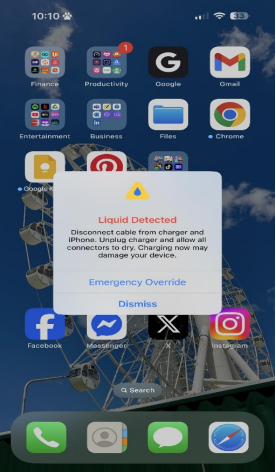
(iOS safety system stopping charge due to moisture. Source: Reddit)
When this triggers, you’ll see an alert on screen: “Liquid Detected in Lightning Connector” or “Charging Not Available.”
How to Fix It
- Unplug everything immediately. Do not try to bypass the warning unless it is a genuine life-or-death emergency.
- Tap the phone gently against your hand with the port facing down to dislodge excess liquid.
- Leave the phone in a dry area with decent airflow for at least 5 to 6 hours.
- DO NOT put it in rice. Raw rice dust gets sticky, turns into paste when exposed to water, and clogs up the charging port worse than lint.
Cause 6: “Optimized Battery Charging” is Pausing the Charge
Ever notice your phone gets stuck at exactly 80% overnight? That isn’t a defect—it’s a feature.
To protect the battery from heat degradation, iOS learns your daily routine. If you regularly charge your phone overnight while sleeping, Optimized Battery Charging will charge quickly to 80%, stop completely, and hold it there until right before you usually wake up.
Similarly, if your phone gets too warm (say, charging on a hot car dashboard while running GPS navigation), iOS will pause charging automatically until the temperature drops.
How to Fix It
- Check your lock screen for a notification saying charging is on hold due to temperature or schedule.
- To override it immediately, press and hold that lock screen notification and tap Charge Now.
- To manage this feature, go to Settings > Battery > Battery Health & Charging and toggle off Optimized Battery Charging.
Cause 7: Corroded or Bent Charging Pins
If you’ve ever used your phone in the rain, dropped it in the sink, or used cheap non-certified charging cables, moisture and voltage spikes can cause micro-arcing. This eats away at the metallic coating on the tiny gold pins located inside the port.
Once these contacts oxidise, turn green, or get bent out of place by an aggressive plug attempt, electricity simply cannot bridge the gap into the phone’s circuit board.
How to Fix It
Shine a bright light into the port. If you notice green rust, black scorch marks, or pins that look twisted and uneven compared to the others, cleaning won’t fix it. The charging port flex cable needs physical replacement by a technician.
Cause 8: Logic Board Power Controller Failure (Tristar/Hydra IC)
This is the worst-case scenario, but it happens more often than people realize. On your iPhone’s motherboard, there is a dedicated microchip (historically known as the Tristar or Hydra IC chip) that acts as the gatekeeper for power. It decides whether to accept power, manages charging currents, and handles USB data communication.
If you regularly use cheap, uncertified car chargers or low-quality wall adapters, sudden voltage spikes can blow out this gatekeeper chip.
Symptoms of a Logic Board Failure
- The phone charges only when turned off, but stops charging as soon as it turns on.
- The phone displays a charging icon, but the battery percentage steadily drops instead of going up.
- The phone charges extremely slowly (taking 6+ hours to gain a few percent).
- The phone gets boiling hot near the middle of the logic board as soon as you plug it in.
How to Fix It
This isn’t something you can fix at home with settings or a tooth-pick. It requires micro-soldering repairs to replace the faulty chip directly on the logic board, or a full board replacement.
How to Clean Your Charging Port Safely
Cleaning a delicate electronic port requires a light touch. One wrong move with the wrong tool can permanently break the tiny internal pins.
1.Gather the Right (Non-Conductive) Tools: Metal tools can short out internal components or bend pins.
Never use safety pins, paperclips, or needles. Metal on metal will scratch off protective coatings or short out the contacts. Use a wooden or plastic toothpick, or a plastic dental pick.
2.Power Down the iPhone Completely: Ensures no active electrical current is running through the pins.
Press and hold the Side button and Volume Down button, then slide to power off. Wait 10 seconds for the device to shut down entirely.
3.Inspect the Interior Under Good Lighting: Work under a direct desk lamp or use a flashlight.
Angle the light straight down into the port. Take note of where the lint is packed—it’s usually compressed against the back wall.
4.Gently Scrape and Pull: Do not pry against the central tongue on USB-C ports.
Insert your wooden toothpick gently. Hug the side walls and back wall of the port. Sweep in a light circular motion to hook the lint, then gently pull outward. Be extremely careful around the delicate pins.
5.Blow Out Residual Dust: Finish with a quick burst of clean air.
Use a short burst of compressed air held at least six inches away from the port to blow out remaining loose debris. Avoid blowing hard with your mouth, as moisture from your breath can cause corrosion.
When to See a Technician
Tried all of the steps above and your iphone not charging at all? It’s time to bring it to a professional.
Here is when you should stop DIY troubleshooting and let a repair shop take over:
- You cleaned the port, but there is physical damage, green corrosion, or bent pins inside.
- The device suffered a hard drop right before it stopped charging.
- The phone got wet or submerged in salt water/liquid.
- The charging port feels loose, wobbly, or the cable drops out with the slightest movement.
- The back of the phone gets excessively hot when plugged in, but the battery level doesn’t rise.
At The Mobile Hub, we test charging systems with specialized voltage/amperage meters to diagnose whether the fault lies in your battery, charging port, or logic board within minutes—saving you time and guesswork.
FAQs
Why is my iPhone charging very slowly?
Slow charging usually comes down to three factors: using an old 5W power adapter instead of a 20W+ fast charger, a degraded battery throttled by iOS, or dirt in the port preventing full pin contact.
Can a bad iPhone battery cause it not to charge?
Yes. If a lithium-ion battery suffers an internal short or degrades below its minimum operational voltage threshold, the phone’s power management system will block charge intake for safety reasons.
Is it safe to clean an iPhone charging port with rubbing alcohol?
It is safe only if you use high-purity (99%) Isopropyl alcohol in very tiny amounts on a lint-free swab. Never use standard 70% rubbing alcohol or water, as the remaining water content will corrode the pins.
How much does it cost to fix an iPhone charging port?
If it’s just compressed lint, most repair shops (including us) can clean it out in a few minutes. If the physical port flex cable needs to be replaced, costs generally range from $70 to $130 depending on your specific iPhone model.